Time4Learning Login: Student and Parent Access
Time4Learning login steps for parents and students: the two sign-in pages, fields to fill, password reset by email, Parent Dashboard tasks and support.
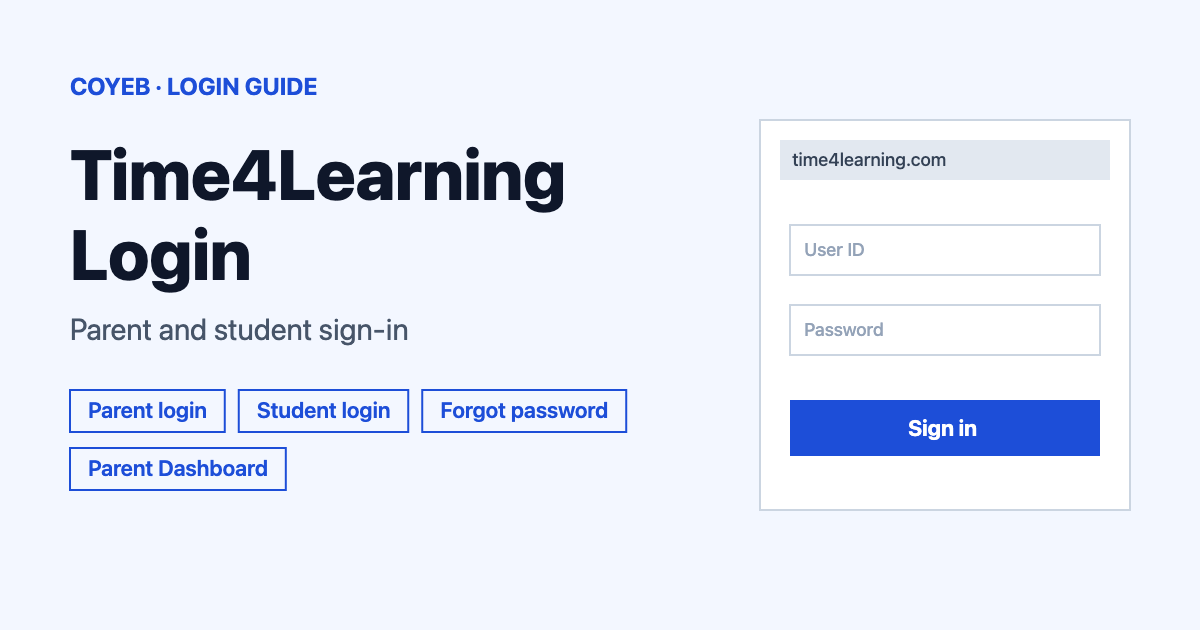
The Time4Learning login starts at time4learning.com/pages/gateway-login. Choose Parent Login and enter your Email and Password, or choose Student Login and enter the First Name, Last Name and Password. The catch: students do not use an email. Only the parent screen has a password reset link.
Last verified: 18 November 2026
Official login page: https://www.time4learning.com/pages/gateway-login (checked November 2026)
coyeb.com is not affiliated with Time4Learning. Never share your password or OTP with anyone.
Which Time4Learning login do you need
The login page has a heading “Log in to Time4Learning” with two choices. Each choice opens its own page.
| You are | Where to sign in | What you type |
|---|---|---|
| Parent | time4learning.com/account/login | Email and Password |
| Student | time4learning.com/pages/student-login | First Name, Last Name and Password |
How to use the Time4Learning login page
Parent login
- Open the login page and click Parent Login. The page is titled “Parent Login”.
- Type your Email and your Password.
- Click Log in as Parent.
Student login
- Open the login page and click Student Login. The page is titled “Student Login”.
- Type the student’s First Name and Last Name, then the Password.
- Click Log in as Student.
Picked the wrong one? Open the login page again and choose the other button.
First time here
The login screens are only for people who already have an account. Parents join by opening Homeschool curriculum in the top menu and choosing a grade level. During sign-up the parent selects a grade level for each student. The grade level or courses can be changed later from the Parent Dashboard.
Forgot your Time4Learning login password
On the parent screen, click Set a new password. The page says “Enter your email and we will send you a link to set your password.” Type your Email, click Send Link, then open the email and follow the link. Use Return to Login to go back when you are done.
The Student Login screen has no reset link. If a child cannot remember the password, a parent can ask the support team. The number is in the contact section below.
Time4Learning login on a phone or tablet
Sign in through a browser on the same pages above. The official FAQ says the site works on most devices with a 10-inch screen or larger and a stable internet connection. iOS devices larger than an iPad mini work with Safari or Chrome. Android devices are not supported for grades K-5 and Amazon Fire tablets are not supported. Some activities may not be marked complete on mobile, so a desktop or laptop is the safer choice.
Time4Learning login not working
| What you see | What it means | Fix |
|---|---|---|
| Page will not load or loads slowly | The connection may be weak. The FAQ says a strong and steady internet connection is needed. | Use a wired or strong Wi-Fi connection. The FAQ does not recommend cellular data or mobile hotspots. |
| Login screen behaves oddly | Your browser may not be the best match. | Try the latest Google Chrome or Mozilla Firefox. Edge and Safari are acceptable but not optimal. |
| Password is not accepted | The password may be mistyped or changed. | Parents can use Set a new password. For students, check the spelling of the first and last name too. |
| Cannot sign in on an Android or Fire tablet | The FAQ says Android is not supported for K-5 and Amazon Fire tablets are not supported. | Switch to a laptop, desktop or a supported iOS device. |
After you log in as a parent
The official FAQ names the Parent Dashboard for two tasks.
- Change grade level or courses: parents can change the grade level or course selections at any time.
- Cancel the membership: parents must cancel through the Parent Dashboard. Billing happens every 30 days from the day of registration. After a cancellation the student keeps access to the program and student reports until the end of the billing cycle.
Stay safe
Check that the address in your browser ends in time4learning.com before you type a password. Do not sign in from links in unexpected emails or messages.
Contact Time4Learning support
- Phone: (888) 771-0914 (checked November 2026)
- Hours: Monday – Friday 9:00 am to 6:00 pm EST (checked November 2026)
- Mailing address: Time4Learning, 17855 Dallas Parkway, Ste 400, Dallas, TX 75287 (checked November 2026)
- Help page: time4learning.com/pages/contact-us (checked November 2026)
Need another school or student sign-in? See the K12 login guide for online school students and parents.