eSpark Student Login: Username, QR Code or Google
Use the eSpark student login with Google, a username and password or a QR code. Find out where the class code is entered. Checked November 2026.
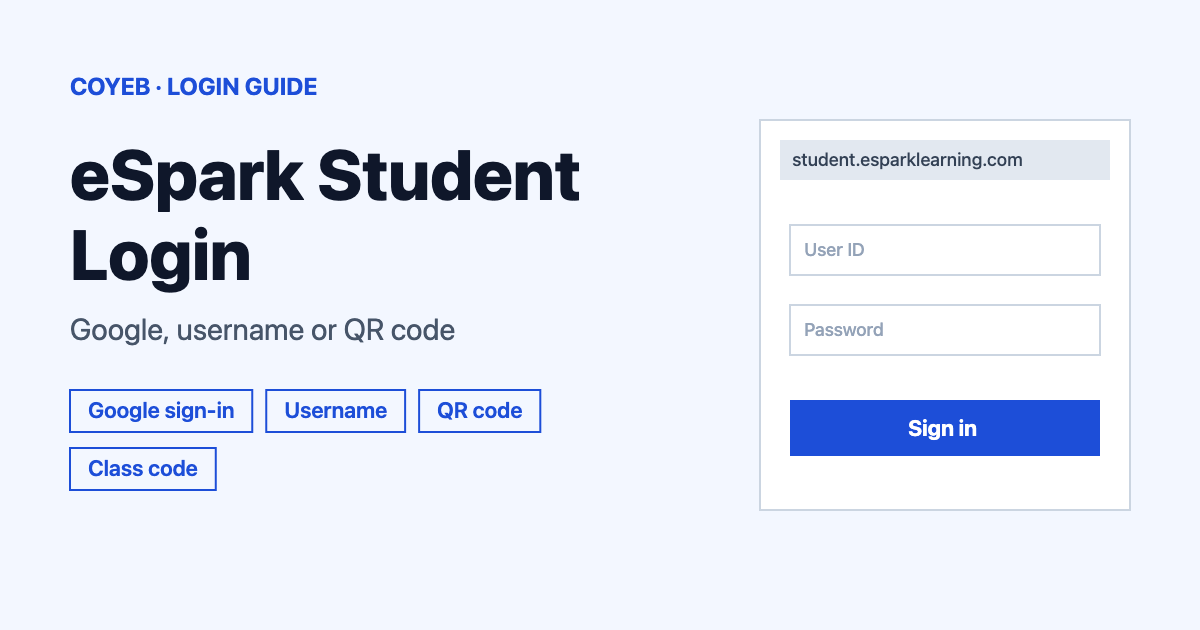
To use the eSpark student login, go to student.esparklearning.com (support pages also name espark.app). Pick Sign in with Google, type the username and password from your teacher or use the QR code on your login card. If eSpark asks for a class code, enter the one your teacher gave you.
Last verified: 18 November 2026
Official eSpark student login address
The student login page is student.esparklearning.com. Its page title is “eSpark Student Login” and it tells students to talk to their teacher if they do not know their login information. eSpark support articles also point students to espark.app as the place to log in on a web browser, so both addresses belong to eSpark Learning.
coyeb.com is not affiliated with eSpark Learning. Never share your password or your QR login card with anyone.
How to use the eSpark student login
The login screen shows a Sign in with Google button at the top. Below it are a username box and a password box with a log-in button. At the bottom is a “Have a QR code?” box that says “Use it to log in!” There is no class code box on this screen. There is also no Clever or ClassLink button on it. Your teacher chooses which way your class signs in, so use the one your teacher set up.
Sign in with Google
- Open student.esparklearning.com or espark.app.
- Click Sign in with Google.
- Choose the Google account your school gave you.
Teachers can bring students in from Google Classroom. Students can also join with the class code from the Class Roster, which is covered below.
Username and password
- Open the login page.
- Type the username from your teacher in the USERNAME box.
- Type your password in the PASSWORD box.
- Click the log-in button under the password box.
Teachers find every student’s username and password on the Class Roster and can print login cards there. The username and password are not case-sensitive, so capital letters do not matter.
QR code login card
- Get your login card from your teacher. Each student card has its own unique QR code.
- On a Chromebook or another computer, open espark.app and click the QR code button.
- On an iPad, scan the code with the Camera app instead.
Clever and ClassLink
These two routes start outside the eSpark login page. With Clever, the teacher signs in to eSpark with Clever to bring in the class. Students then open their teacher’s page in Clever and log in automatically. With ClassLink, the school’s ClassLink admin must share data with eSpark first. Students then click the eSpark icon in their ClassLink Launchpad. ClassLink cannot be combined with another way of adding students.
Where the class code fits in the eSpark student login
Every class has its own unique class code, also called a join code. It sits on the Class Roster that your teacher sees. Because the code is not part of the login screen, you enter it after you sign in.
- Not in a class yet: open espark.app and log in. eSpark prompts you to enter a class code automatically.
- Already in a class: click the X beside your name in the upper right and choose Enter Join Code. Then type the class code. This also works for students who are already registered in eSpark.
If you do not have the code or it is not accepted, ask your teacher to read it from the Class Roster.
Forgot eSpark student login password
No student self-service password reset is described on the official eSpark pages. Usernames and passwords come from the teacher’s Class Roster. The login page itself says to talk to your teacher if you do not know your login information. Ask your teacher for your roster entry or a printed login card. The printed login card also carries your QR code.
eSpark student login on iPad, Chromebook or at home
eSpark points students to the browser rather than an app. Its support page says all students should log in at espark.app in a web browser.
- iPad: if an eSpark app is still on the home screen, delete it and use the browser instead. The iPad should run iOS 17 or later. eSpark says iPads on iOS 16 or older often run into errors.
- Chromebook or laptop: eSpark recommends using Chrome.
- Android phone or other tablet: use an iPad, Chromebook or laptop if you can.
eSpark student login not working
eSpark does not publish exact error messages for the student login. The fixes below are general suggestions based on the official support pages.
| What you see | What it means | Fix |
|---|---|---|
| Login fails on an older iPad | eSpark says iOS 16 or older often causes errors | Update to iOS 17 or later. You can also use Chrome on a Chromebook or laptop at espark.app. |
| Not sure of the username or password | Both come from the Class Roster and are not case-sensitive | Ask your teacher for the roster entry or a printed login card. |
| QR code does nothing on an iPad | iPads scan the code with the Camera app | Open the Camera app and point it at the QR code on your card. |
| eSpark asks for a class code or does not accept it | The code comes from the teacher’s Class Roster | Ask your teacher for the class code and enter it again. |
| No Clever or ClassLink button on the login page | Those routes start in Clever or the ClassLink Launchpad | Open eSpark from your teacher’s page in Clever or from the ClassLink Launchpad. |
| Old eSpark app icon on an iPad home screen | eSpark now wants students to use the browser | Delete the app and log in at espark.app. |
After the eSpark student login: joining your class
The first thing eSpark may ask for after sign-in is the class code. Type the code your teacher gave you and continue. If you need to change class or add a code later, use the X beside your name and choose Enter Join Code.
Other student sign-in guides on coyeb.com include Exxat Login and Brainware University Login.
Stay safe when you log in to eSpark
Check that the address belongs to esparklearning.com or is espark.app before you type anything. Other education sites with similar-looking names are not eSpark Learning. Do not give your password or QR login card to other students or to anyone online. If a page that is not one of those two addresses asks for your eSpark details, close it and tell your teacher.
eSpark student login help and contact
Your teacher is the first person to ask, since they manage usernames, passwords and class codes. The login page footer lists info@esparklearning.com for questions (checked November 2026). Teachers and parents can also use the blue chat button at the bottom right of the eSpark support page. No phone number is listed there.