eSewa Punjab Login: Citizen Services Portal Guide
Esewa Punjab login on esewa.punjab.gov.in: User ID, password and captcha, OTP check, forgot password, track status and helpline 1100 for officials.
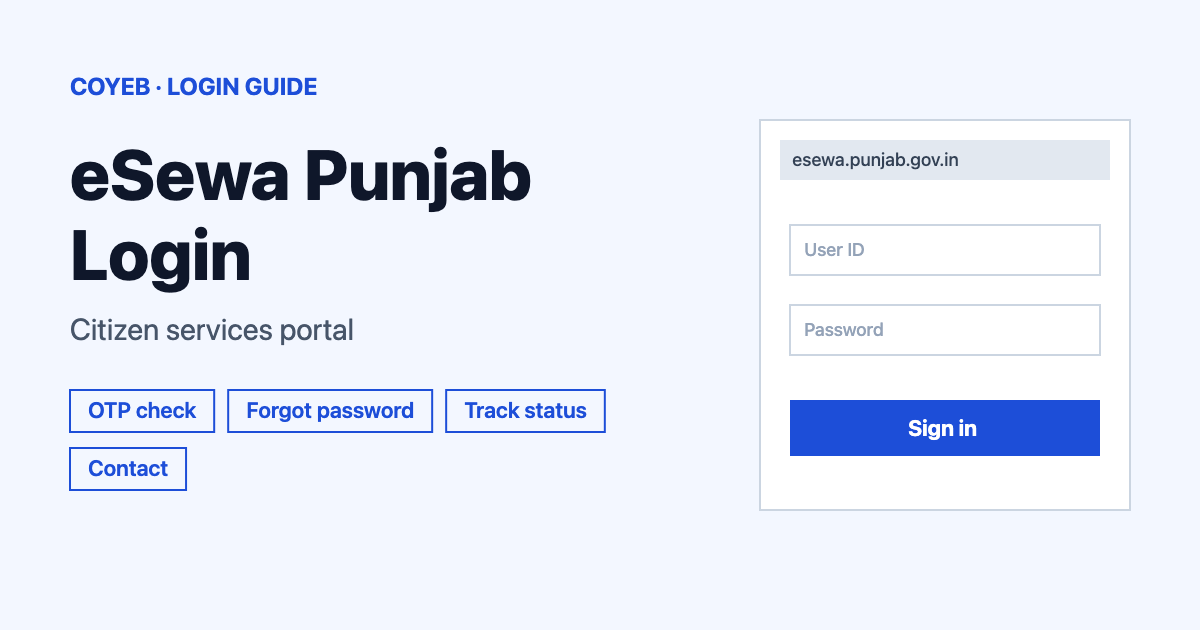
For esewa punjab login, open esewa.punjab.gov.in, type your User ID and Password, fill in the captcha code and press Login. The catch: this sign-in is for authorised officials. Citizens apply at a Sewa Kendra and can then use Track Status or Download Certificate on the same page without logging in.
Last verified: 18 November 2026
Official link: https://esewa.punjab.gov.in/
coyeb.com is not affiliated with eSewa Punjab. Never share your password or OTP with anyone.
Who can use the eSewa Punjab login
The portal says it is for any official who is authorised to apply for a citizen, approve an application or reject it. A citizen who wants a service has to visit the nearest Sewa Kendra. Track Status and Download Certificate do not need a login (see the section below).
What you will see on the eSewa Punjab login page
- User ID box (the box says “Enter your username”)
- Password box
- A captcha code box under the fields
- Links Forgot UserID ? and Forgot Password ?
- Button Login
- Quick links SEWA KENDRA, DOWNLOAD CERTIFICATE, VERIFY CERTIFICATE and TRACK STATUS
- Helpline-1100 at the top
How to do the eSewa Punjab login
- Open esewa.punjab.gov.in in your browser.
- Type your User ID and Password.
- Type the captcha code shown on the page.
- Press Login.
- Finish the extra check the portal shows (see the next section).
OTP, m-Sewa and Aadhaar checks
The portal has three extra sign-in screens. Which one you get depends on your account.
- OTP Authentication: the screen says “Please enter One Time Password sent on your registered mobile number”. Type the code and press Validate.
- m-Sewa Authentication: choose this on the Proceed With screen if you already use the m-Sewa service. The Proceed With screen offers OTP Authentication or m-Sewa Authentication.
- Aadhaar Authentication: type your Aadhaar Number and press Authenticate.
First-time login and registration
The login page has no Register or Sign up link. Questions about a new account can go to the helpline or the email address in the contact list below.
Forgot UserID
- Tap Forgot UserID ? under the User ID box.
- Type your mobile number or email address in Mobile Number/ Email ID* and press Submit.
- Type the OTP you receive and press VERIFY. Use Resend OTP if nothing arrives.
Forgot password
- Tap Forgot Password ? under the Password box.
- Type your User ID and press Submit.
- Type the OTP and press VERIFY.
- Type New Password and Confirm Password, then press Submit.
Password expired
An old password can stop working. The portal then shows “Your password has expired” and “Please set a new password”. Fill in Enter New Password and Confirm New Password. A message “Password Updated Successfully.” confirms the change.
Update your mobile number and email
The portal has an “Update and Verification of Mobile and Email” screen. It asks for your mobile number with Send Mobile OTP and Verify Mobile, then your email address with Send Email OTP and Verify Email. The screen reminds you to check your name before you update either detail. An older notice from 2023 asked users to update both by 31 July 2023.
OTP not received
On the login OTP screen tap Didn’t receive an OTP? and then Resend OTP. The OTP is sent to the mobile number registered on the account.
Login on mobile
The portal works in a normal phone browser, so open esewa.punjab.gov.in in your phone’s browser and use the same options. Check that the address is exactly esewa.punjab.gov.in before you type anything. People also search for M Sewa Punjab, which is a separate sign-in option on this portal, labelled m-Sewa Authentication.
Login not working
| What you see | What it means | Fix |
|---|---|---|
| No OTP arrives | The code may be delayed, or your mobile number may not match the one on record | Tap Didn’t receive an OTP? then Resend OTP. Check your signal and SMS inbox. |
| Password not accepted | The password may be mistyped or forgotten | Use Forgot Password ? to set a new one. |
| “Your password has expired” | The portal needs a new password before you continue | Set one in Enter New Password and Confirm New Password. |
| You forgot your User ID | The login screen does not show it | Use Forgot UserID ?. |
| Page will not load | The site or your connection may be busy | Try again later, or switch from Wi-Fi to mobile data. |
Track status and download a certificate without login
Track an application. Press TRACK STATUS on the login page. The Track Application Status screen has two tabs, APPLICATION ID and MOBILE NO. Fill in Application Id and Captcha, then press Generate OTP. The portal says a citizen can track an application without logging in. If you lose the application number, check your registered SMS or the application history. If you still cannot find it, contact the Sewa Kendra Operator.
The status words mean this:
- Pending: the application is being processed or waits for action by the authority.
- Approved: the competent authority approved it.
- Rejected: the competent authority did not approve it. The reason, where available, is in the application details.
- Objection Raised: the authority asked for more information or documents. Check the application details and act within the time given.
Download a certificate. Press DOWNLOAD CERTIFICATE. Type your Application No. (for example 12345678) and ask for an OTP. The OTP goes by SMS to the applicant’s registered mobile number and is valid for 15 minutes. Type it and press Download. If the download or the OTP fails, visit the nearest Sewa Kendra to get the certificate.
Verify a certificate. Press VERIFY CERTIFICATE. For digitally signed certificates the portal says to open the file in Acrobat Reader 11 or above.
The unified DiGi Punjab site also has a Track Application link.
Stay safe
The addresses to trust are esewa.punjab.gov.in and digi.punjab.gov.in. Check the address bar every time. Never share your OTP or password, even with someone who says they work for the portal.
Contact and helpline
- Phone (state helpline): 1100 (checked November 2026)
- Doorstep services enquiry: 1076 (checked November 2026)
- WhatsApp chatbot (Punjab Citizen Service): 98555-01076 (checked November 2026)
- Email: esewa-punjab@punjab.gov.in (checked November 2026)
- Address: Plot No. D-241, Industrial Area, Phase – 8B, Sector – 74, Mohali – 160071 (checked November 2026)
- Contact page: esewa.punjab.gov.in/contact-us (checked November 2026)
Other Indian government portals: IREPS Login and DGFT Login.